Shopper Portal Guide
Login
Shoppers can login to their portals at https://shopper.splitit.com using Google/Apple or a magic link:
-
Sign In with Google or Apple
Authorize with G Suite or Apple to login.
-
Magic Link

After clicking Login with magic link, the shopper receives an email with the link:
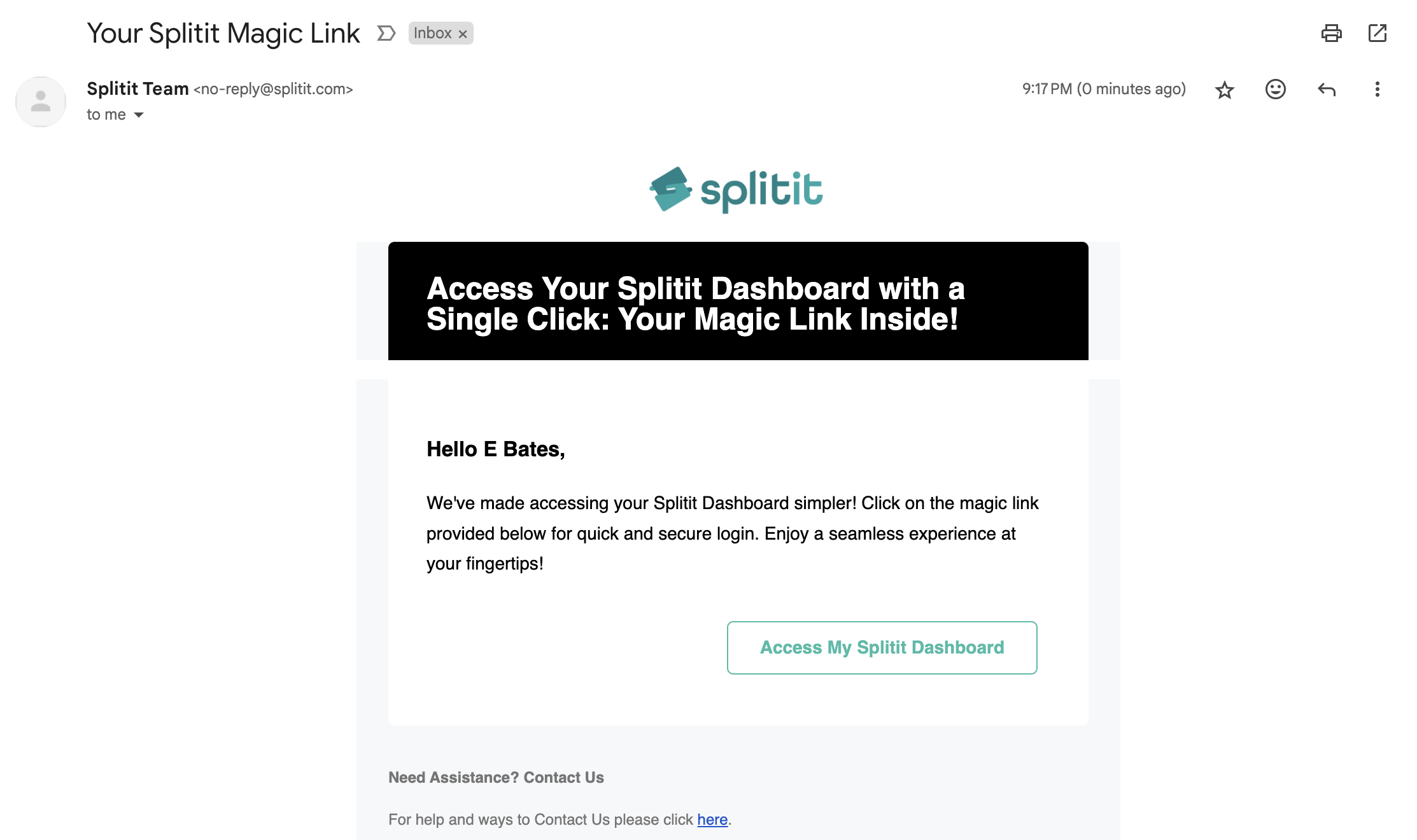
Clicking on the link opens the shopper portal on the dashboard page, with the user already logged in.
-
The link is for one-time use only. Clicking on the link again shows an error page.
-
The link is valid for 15 minutes.
View Plans/Perform Actions
List All Plans
The default view of the portal shows a list of the shopper's Active Plans (under the All Plans tab). These are plans that have been authorized and their first installment captured (charged).
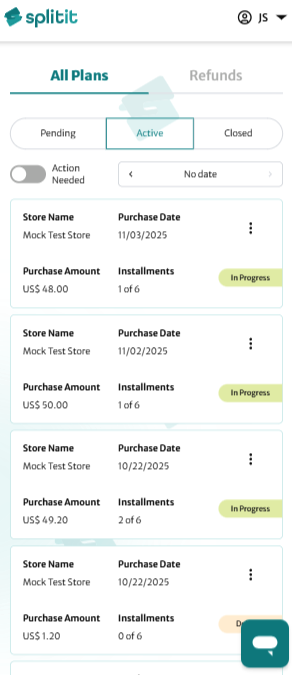
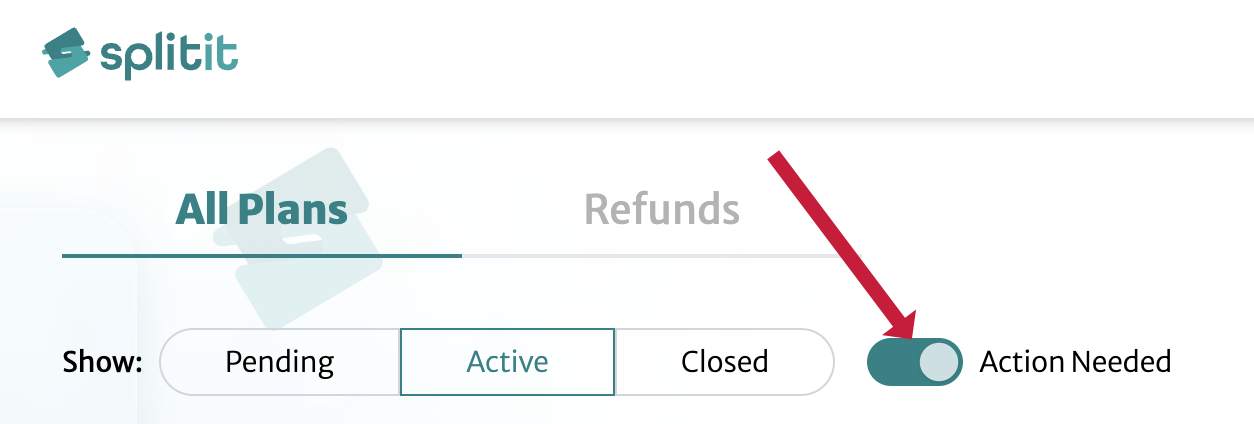
To view plans that have been authorized but not charged yet, go to the Pending tab. To view Closed plans, click on that tab. If you'd only like to see plans that (urgently) require an action to be performed by the shopper, click the Action Needed switch in conjunction with Pending, Active or Closed (see Perform Actions on Plans below to perform the action that is needed).
No matter which tab is selected (Pending, Active or Closed), a table is shown where each row lists an installment plan, showing the name of the store, the purchase date, the total plan amount, the installment number, the amount of the next payment, the next payment date and the plan’s detailed status. The three dots at the far right of each row let you access all available actions for the plan (refer to Perform Plan Actions section below).

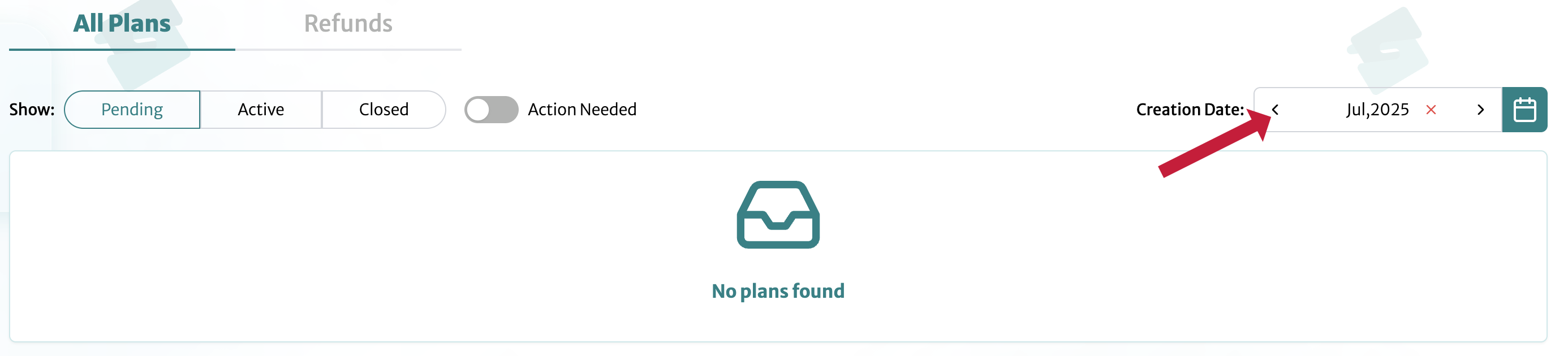
Note that you can also view plans month-by-month by using the arrows at upper right (to remove this filter, click the red “x”).
See Plan Details
Click on any plan row to open plan details:

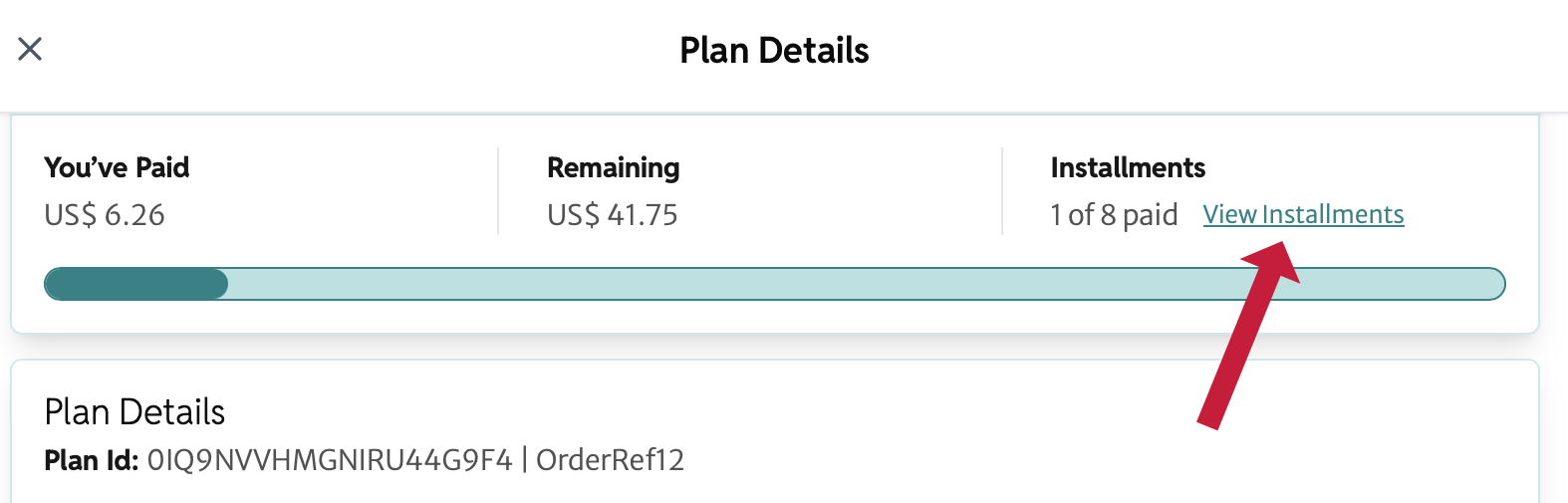
You can see how much has been paid already, the amount remaining, and the current installment number. Also visible are Payment Method, APR, Purchase Date, Total Plan Fees, Plan Start Date, Purchase Amount (and Purchase Amount without fees), Pay Off Amount, Monthly Payment and when the plan will be completed (Payment Completion).
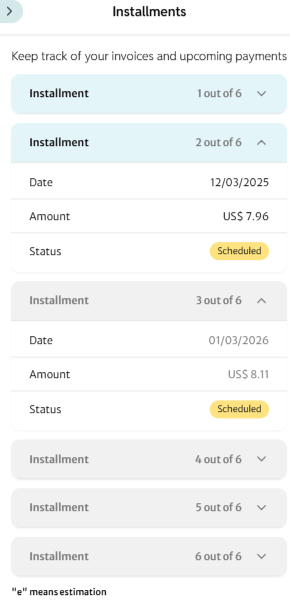
To view a list of scheduled installments, click View Installments at the top right.
Perform Plan Actions
At the bottom of the main window, there is a list of Quick Actions you can perform for the plan:

These function as such:
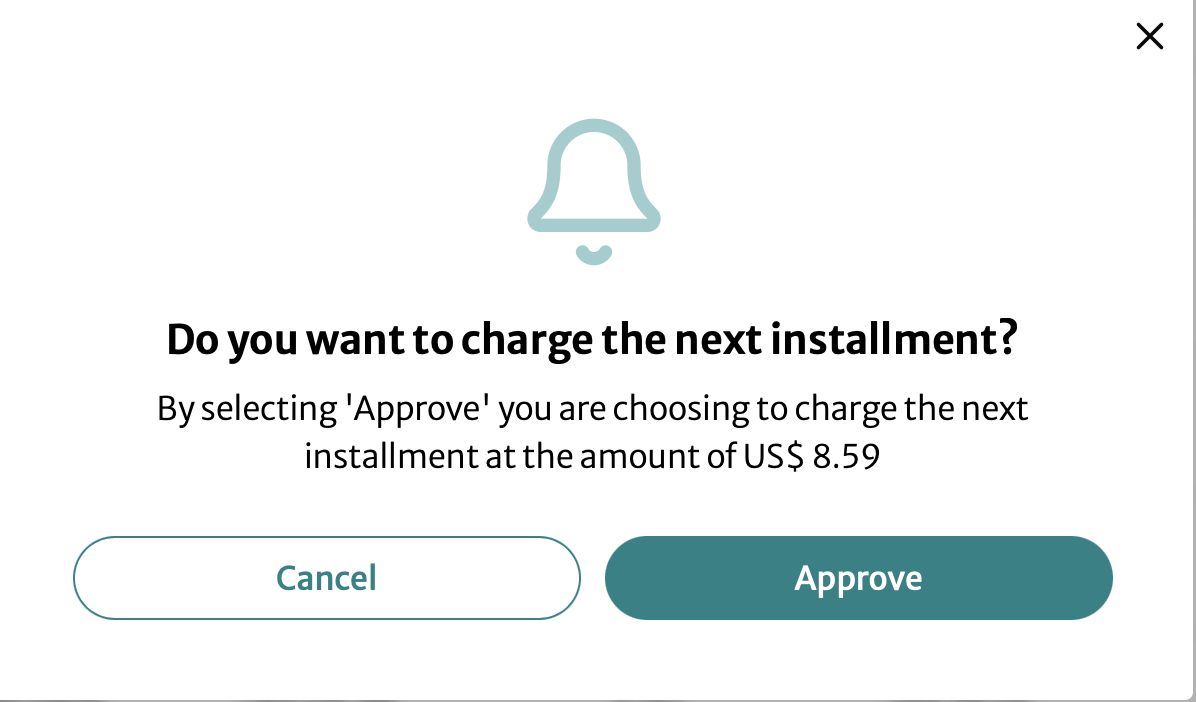
- Pay Next Payment: Review the amount and then click Approve to pay the plan’s next payment.
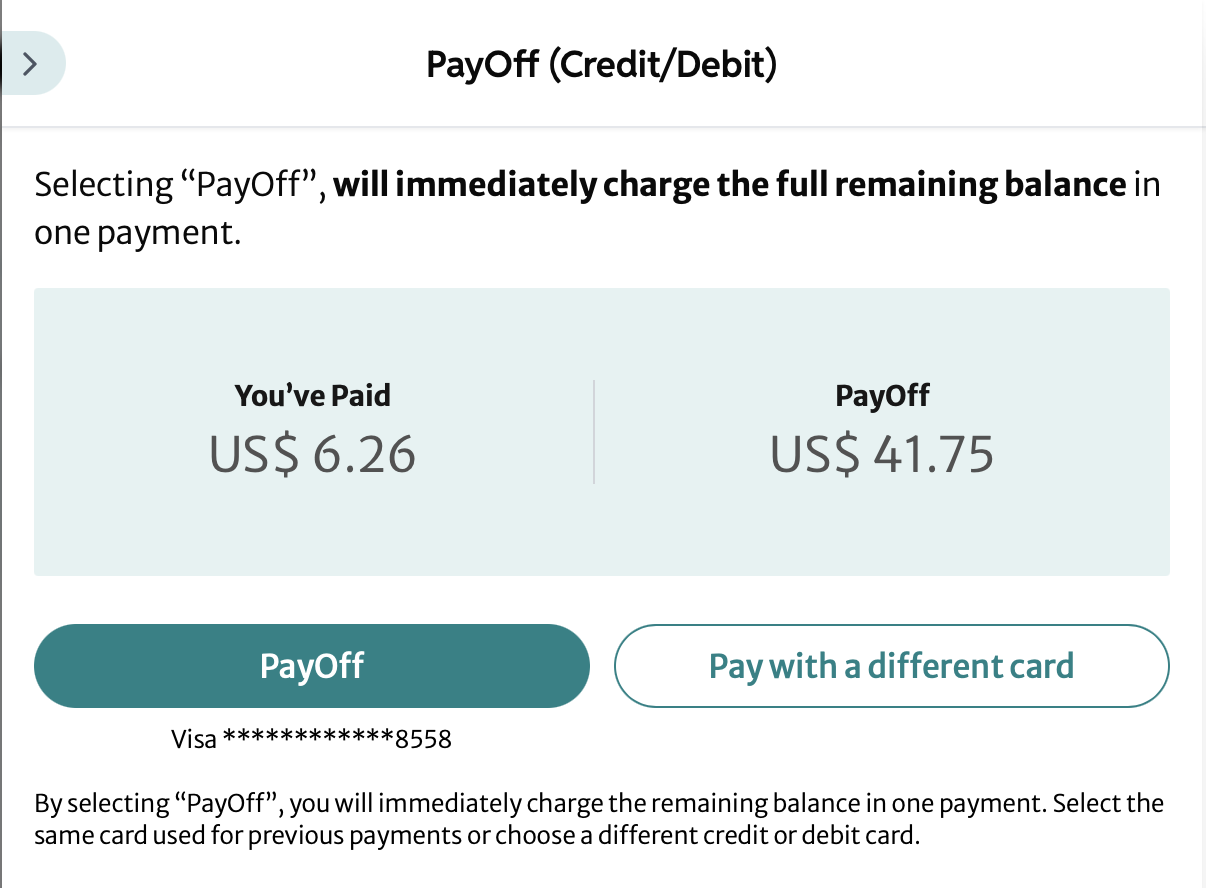
- PayOff (Credit/Debit): Review the amount, then pay off the remainder of the plan using either the card on file or a new card.
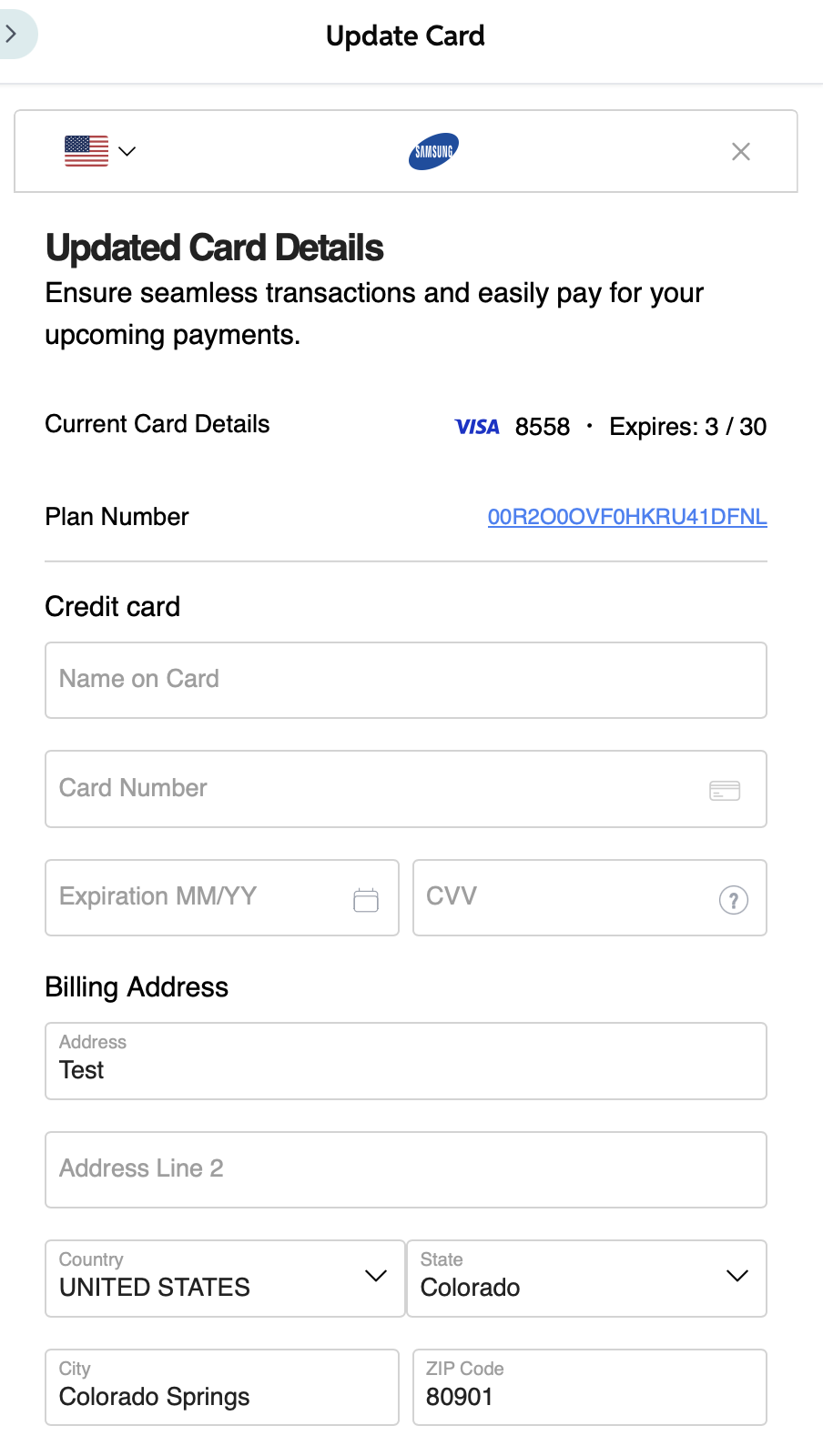
- Update Card: Update the card on file by adding your new credit card details and billing address. Click Update Card to proceed.
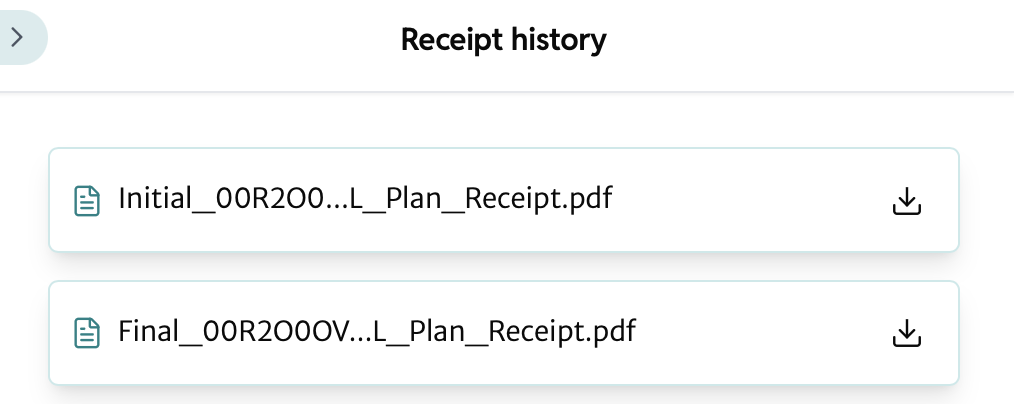
- Download Receipt: Download your desired receipt for the plan. If you have more than one receipt, you will be given a choice of downloads; otherwise, it will be downloaded automatically:
View Refunds
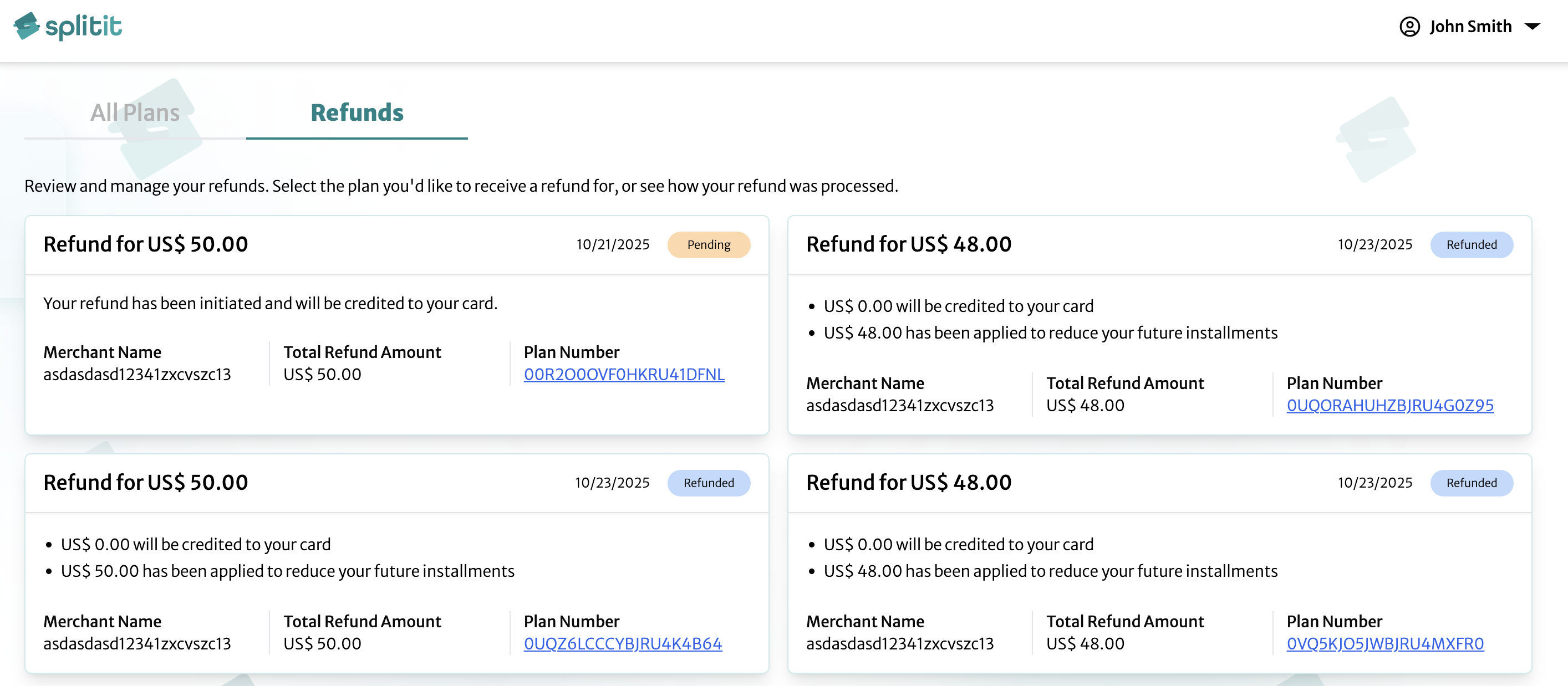
Refunds are listed in two columns (sorted by status, then by descending date). Each block shows the refund amount, date, status (Pending, Refunded, or Failed), textual description of the latest action, merchant name, total refund amount, and plan number. Clicking on the plan number will take you to its details (refer to See Plan Details above).